 writui
Try a five-minute writing session
Let’s write your first post in writui. You’ll choose a password, put a few thoughts on the page, and save a version to come back to. Here are the steps we’ll follow:
- Install and open writui
- Choose your password
- Start a post
- Write a few thoughts
- Keep a version
- Come back to it
1. Install and open writui
On macOS or Linux, paste this into your terminal and press Enter:
curl -fsSL https://writui.com/install.sh | bash
Follow any instructions the installer prints, then open the app:
writui
On Windows, follow the build instructions
first, then run writui.
2. Choose your password
The first time you open writui, it asks you to create your vault. This is where your posts and their versions are kept, encrypted on your computer.
Type a password of at least eight characters, press Tab, and type it again in Confirm password. Press Enter to create your vault. You can also click either password box to move between them.
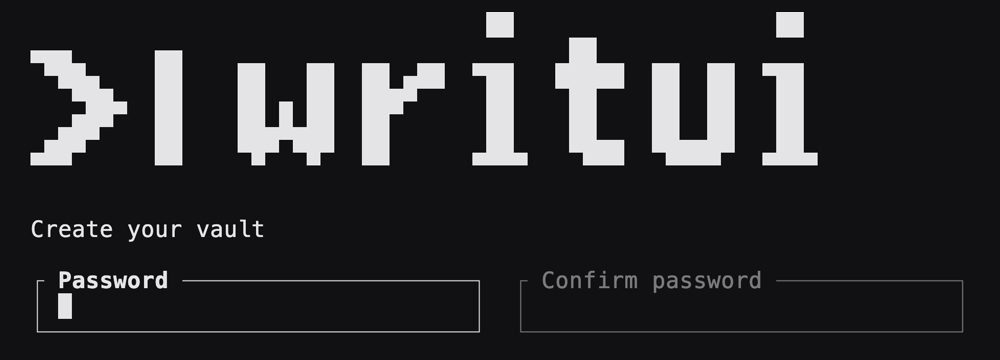
Choose a password you can remember or keep in your password manager. There is no password recovery: forgetting it means losing access to your writing. If you’ve already set up writui, enter your existing password to unlock it instead.
3. Start a post
You’ll see your list of posts. Click New or press n to start writing.
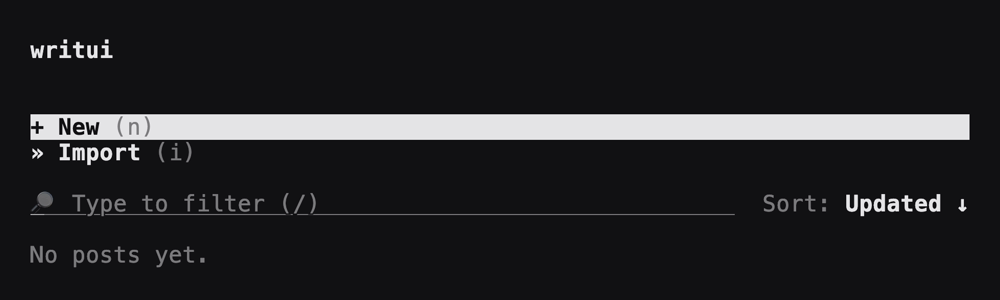
The first line already starts with # . Type a title, such as
A little room to think, then press Enter twice to leave a blank line
before the body.
4. Write a few thoughts
Write about something on your mind. Or try this short example to see how Markdown looks:
Today I want to make a little room for **writing**.

## Things worth noticing

- A good conversation
- An idea for tomorrow
- A sentence I want to keep

One quiet paragraph is a good start.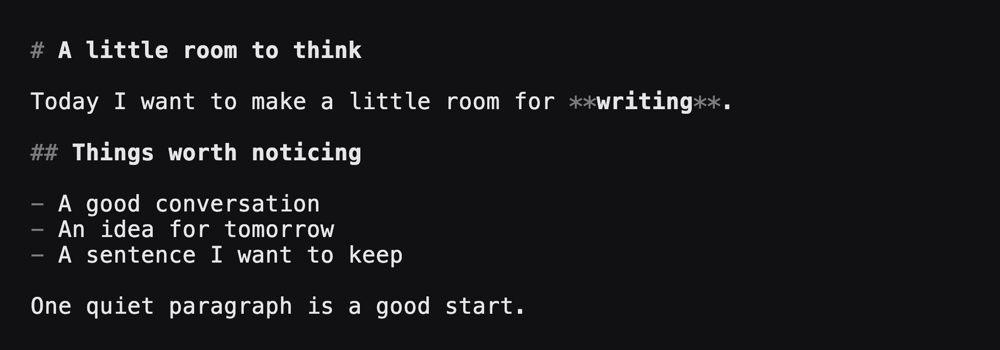
The text is formatted as you type: **writing** becomes bold, ## starts a
heading, and - starts a list. The Markdown marks stay visible, so you can
always see and edit what you typed.
Your post saves automatically as you write. You don’t need to press a save button to keep your changes.
5. Keep a version
Press Ctrl+K to open the menu. It lists the commands and their shortcuts. You can click a command, move to it with the arrow keys and press Enter, or type part of its name to find it.
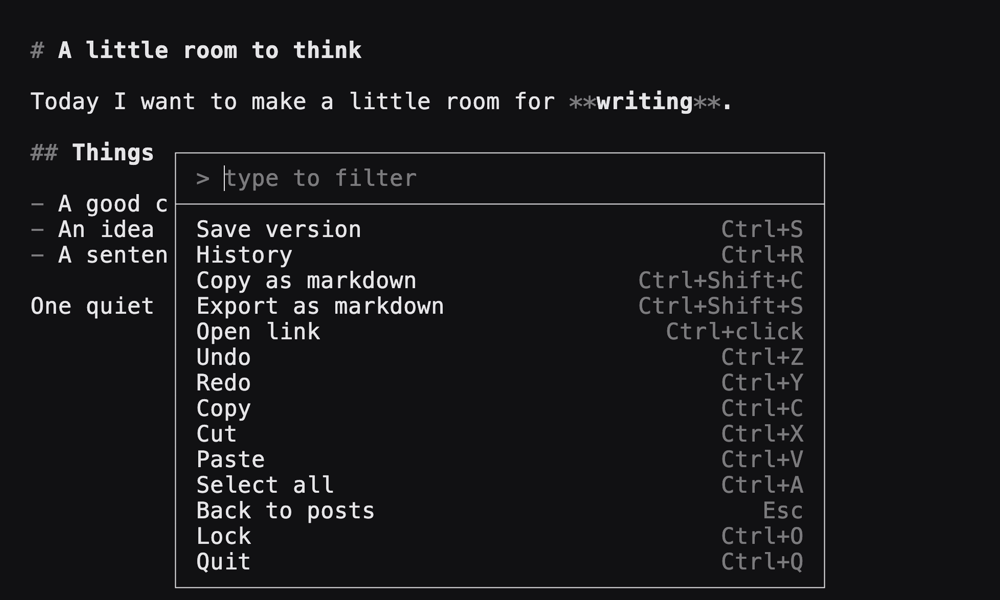
Choose Save version, or close the menu with Esc and press Ctrl+S. Name the version First thoughts, then press Enter.
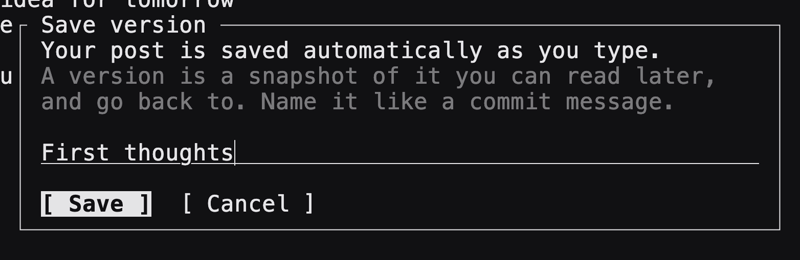
A version keeps a snapshot of your post. It’s useful when you want to try a different direction without losing the earlier one. Open History from the menu, or press Ctrl+R, to see the version you just saved. Press Esc to return to writing.
6. Come back to it
Press Esc in the editor to return to your posts. Click your post to open it, or select it with the arrow keys and press Enter.
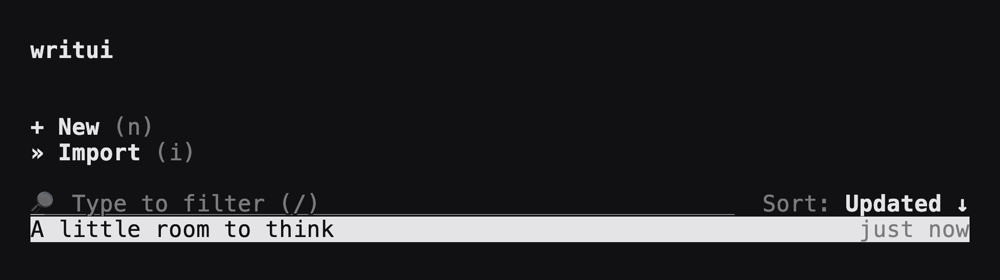
When you’re done for now, press Ctrl+Q to quit. Next time, run writui,
enter your password, and you’ll be back where you left off. To lock it
without quitting, press Ctrl+O; unlocking brings you back to the same place.
To keep a Markdown copy outside writui, open the menu and choose Export as markdown. Exported files are ordinary text files, so store them somewhere suitable for what you’ve written.
How did it go?
Tell us about your writing session. What did you want to write? Did anything get in your way? Would you come back to it tomorrow? If you’ve already been using writui, we’d like to hear what makes you keep using it too.
GitHub feedback is public, so describe your experience without including private writing or your password.